# Quickstart Guide
Want more details into each of the steps? Head to the [Basics](https://boundaryai.gitbook.io/boundaryai-docs/basics/surveys/editor) section to learn more.
### Step 1: Log In
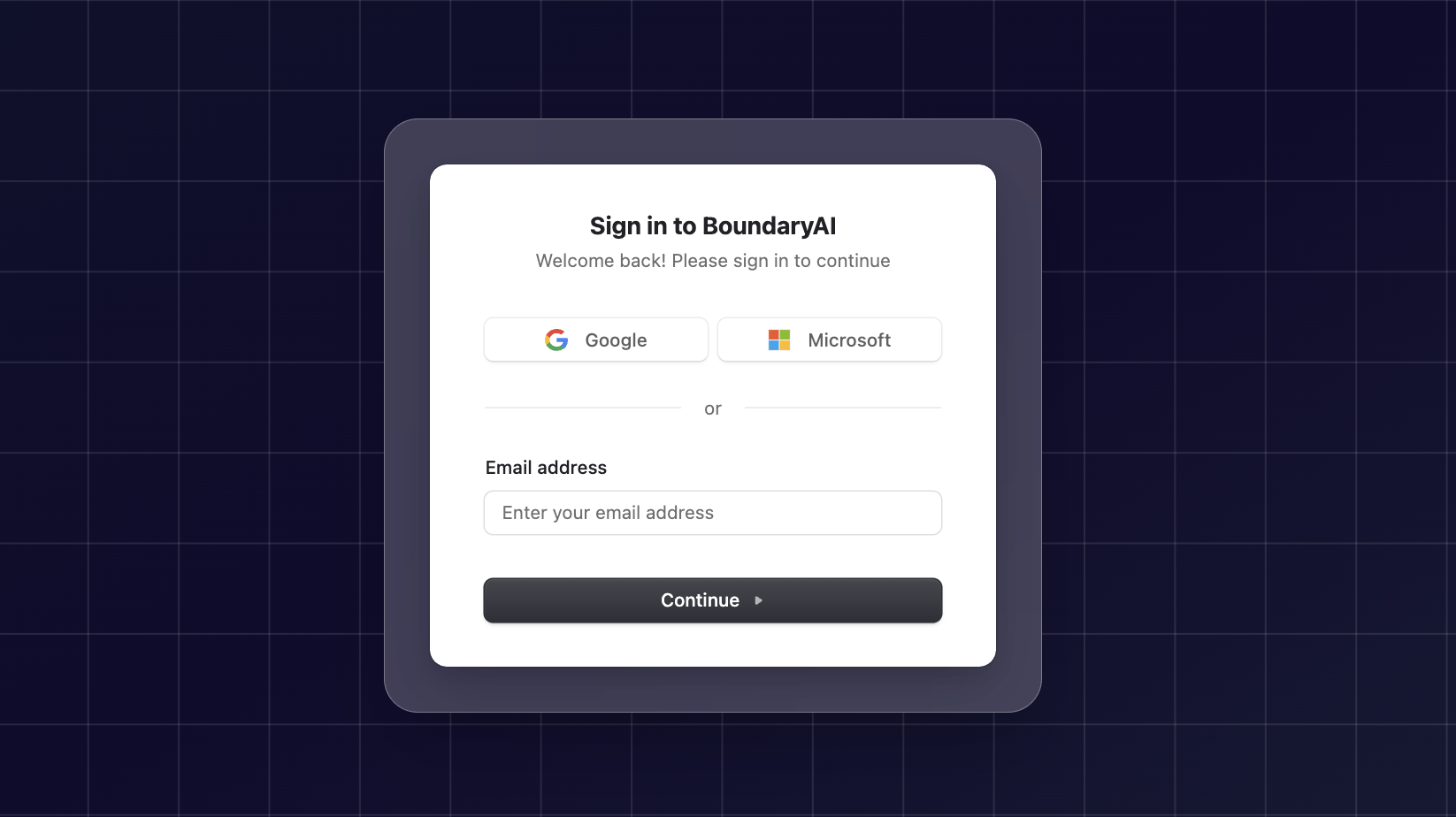
1. Visit [Boundary AI](https://app.boundary-ai.com)
2. Enter your **email** and **password** or log in via your **Google** or **Microsoft** inbox
3. If required, open your **Authenticator App** and enter the **OTP code**
4. Click **Log In** to access your dashboard.
### Step 2: Create your First Feedback Group
* A **Feedback Group** represents a central feedback space for any of your organization's projects
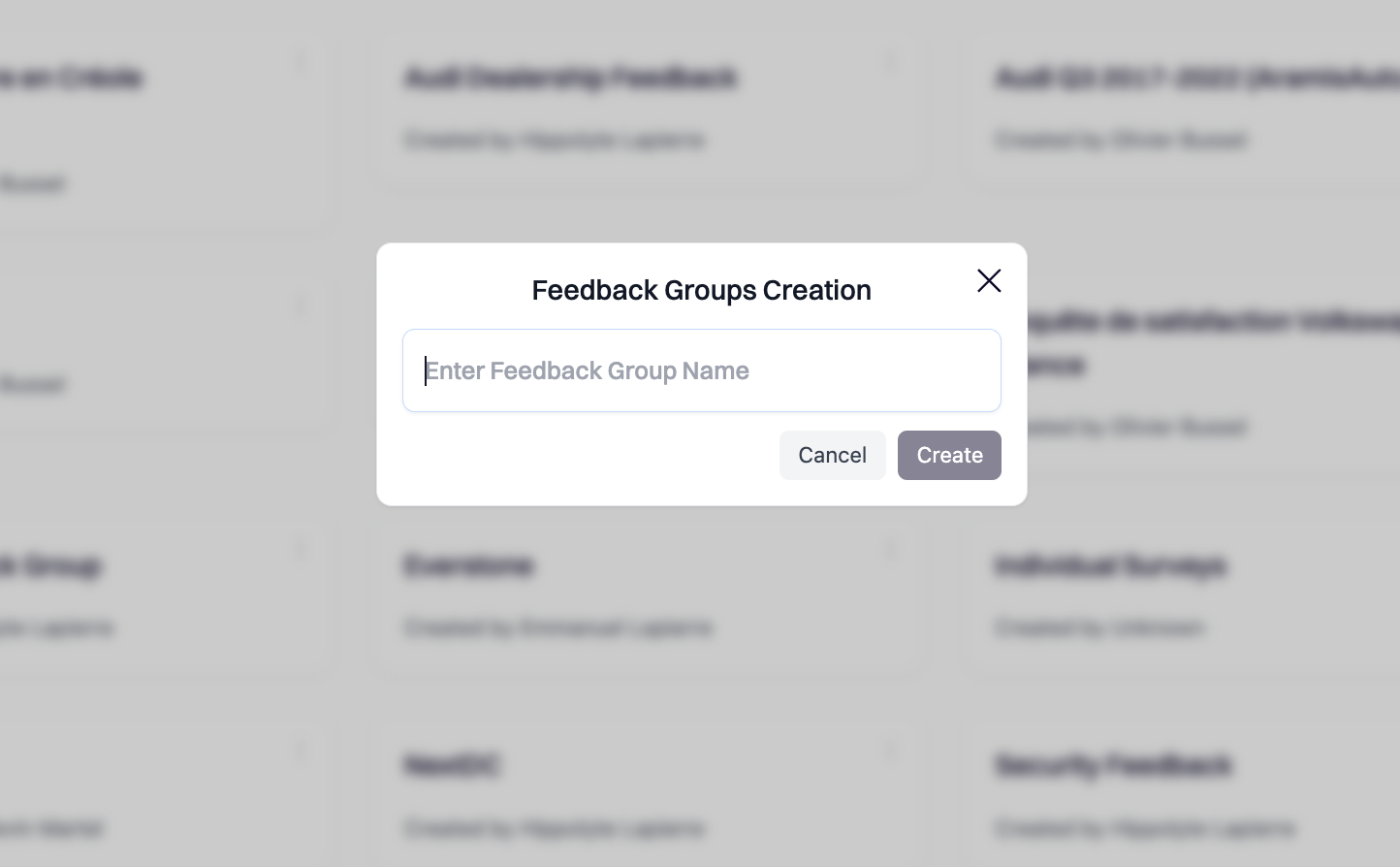
1. Click **Create Feedback Group** button
2. Enter a **name**
3. Click **Create**
### Step 3: Bring Your Feedback Into BoundaryAI: Upload, Connect, or Create
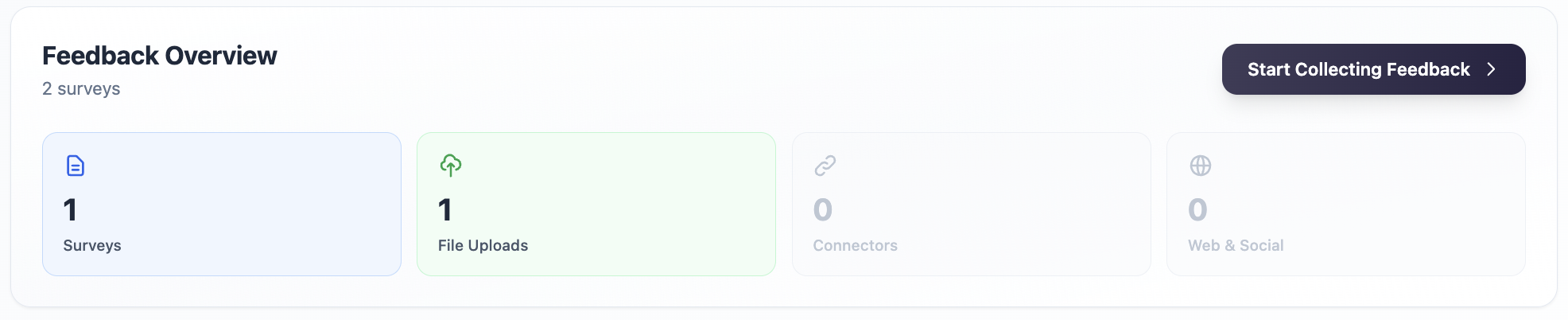
BoundaryAI offers multiple ways to import or collect feedback whether your data already exists or you need to gather new insights.
**Option A — Create a New Survey**
If you need to collect new feedback, use BoundaryAI’s built-in survey creation tool to launch a new questionnaire and gather responses directly in the platform.
**Option B — Upload Your Data (Excel/CSV)**
Ideal if you already have feedback stored in spreadsheets.
Simply upload your Excel or CSV file and BoundaryAI will process it automatically.
**Option C — Connect to Your Existing Systems**
Use Connectors to sync feedback directly from the tools you already use.
BoundaryAI will automatically import and update data from integrated platforms.
**Option D — Web & Social Media Scraping**
Capture external, publicly available feedback from websites, forums, and social media sources.
Choose the method that best fits your workflow and the type of feedback you want to analyze.
### Step 4: Monitor Responses & Analyze Data
BoundaryAI now provides **live, real-time analysis as responses come in**
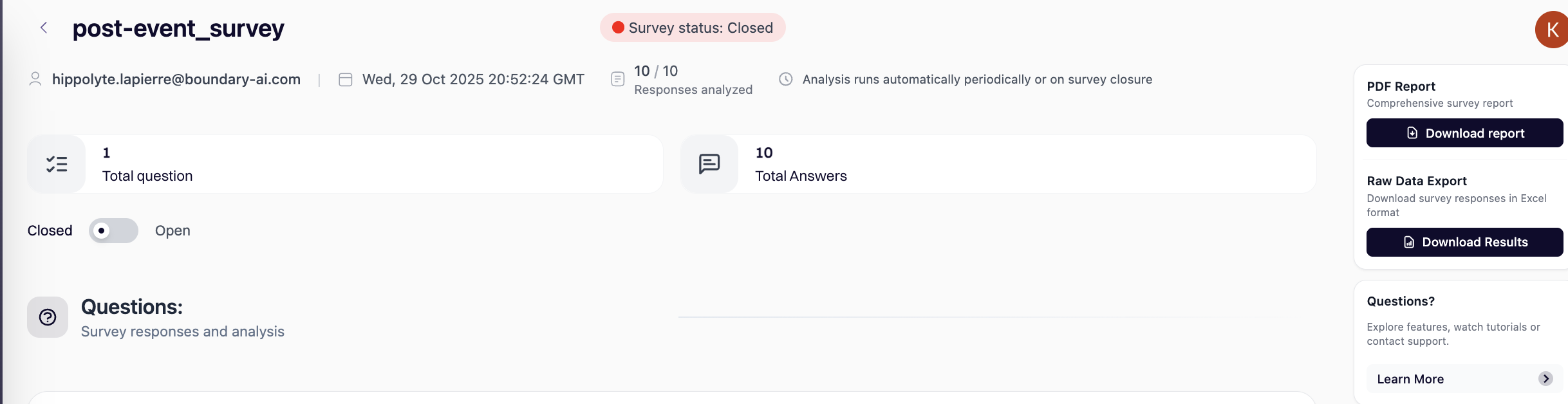
From the **survey** or **dataset page**, you can:
1. View live responses as they arrive.
2. Explore high-level insights
3. Click More Details to access detailed analysis, themes, flags, and segment comparisons
4. Export reports (PDF) at any time